
The first time you open Backtrack, a short wizard sets up your backups: what to back up, where to keep the backups, and the passphrase that locks them. It ends with your first backup finished. From then on, Backtrack backs up on its own.
Before you start
- Backtrack is installed. Install Backtrack says how.
- You have somewhere to keep the backups, with more free space than the
files you are backing up:
- an external drive;
- a network folder, such as a shared folder on a NAS or another computer;
- or an SSH server, which needs your SSH key set up first: see Set up an SSH key for a server.
Set up your backups
-
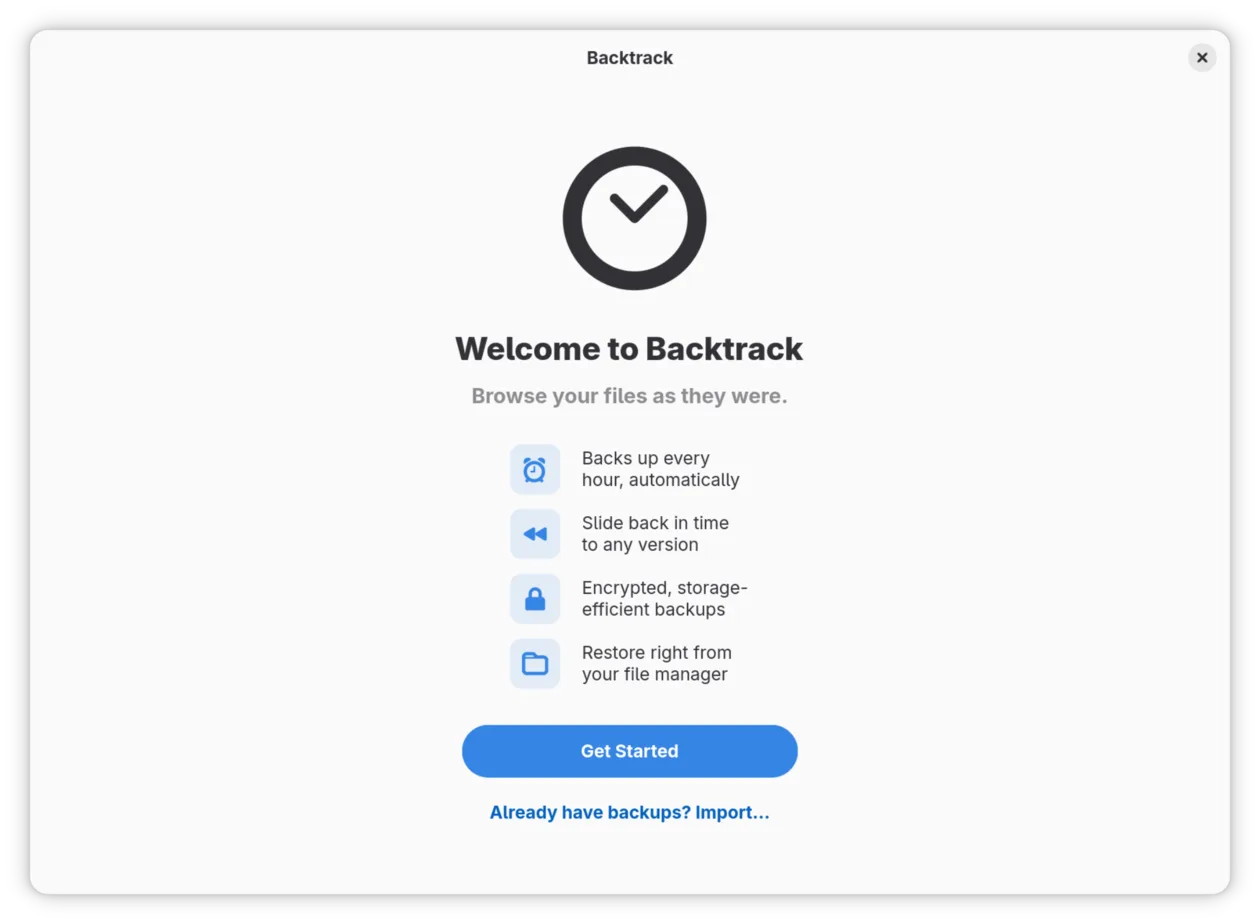
Plug in the drive you are backing up to, if that is where the backups are going, and open Backtrack. You see Welcome to Backtrack. Click Get Started.
-
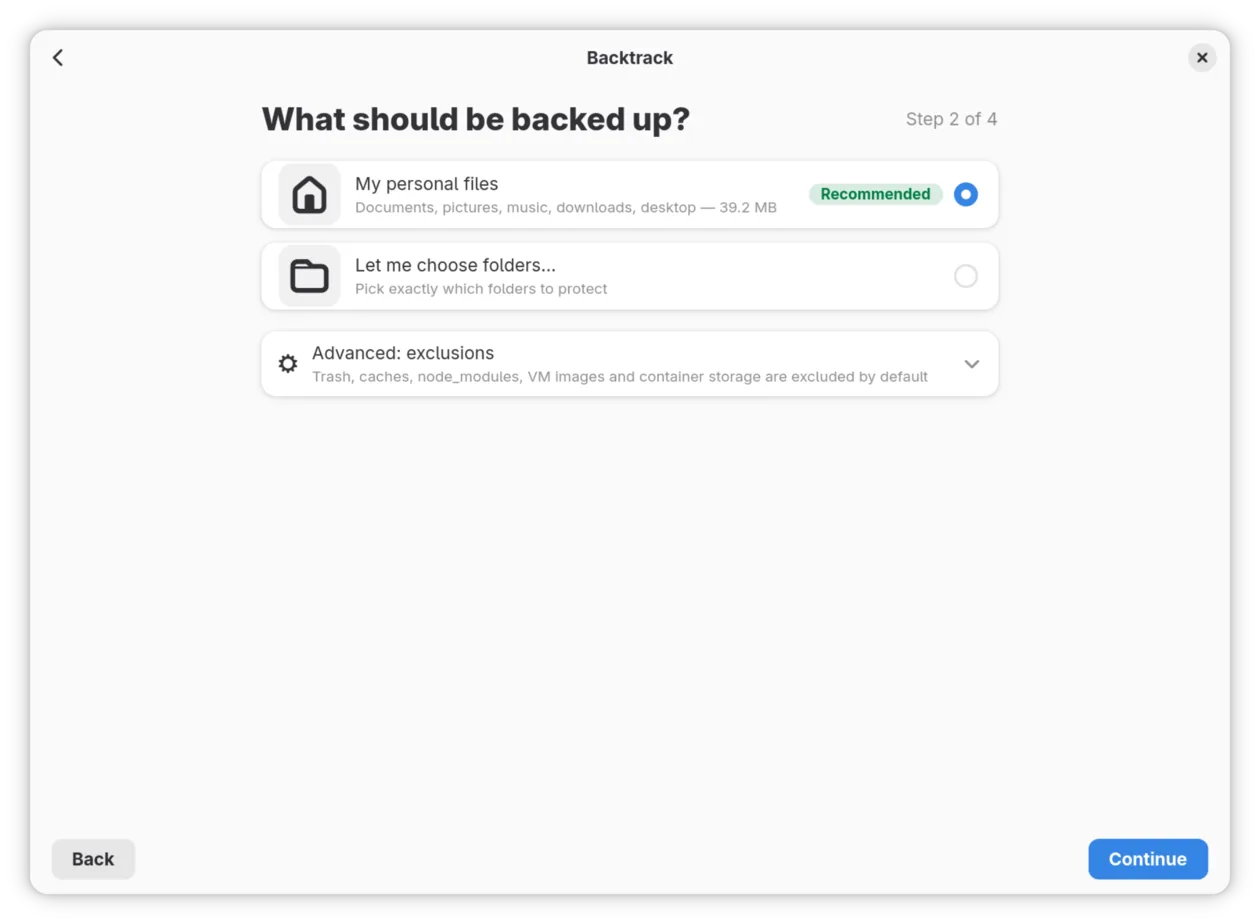
What should be backed up? asks what to back up. My personal files is chosen already: your documents, pictures, music, downloads and desktop. To pick the folders yourself, choose Let me choose folders… instead. Advanced: exclusions says what Backtrack leaves out: the Trash, caches and other files you would never want back. Click Continue.
-
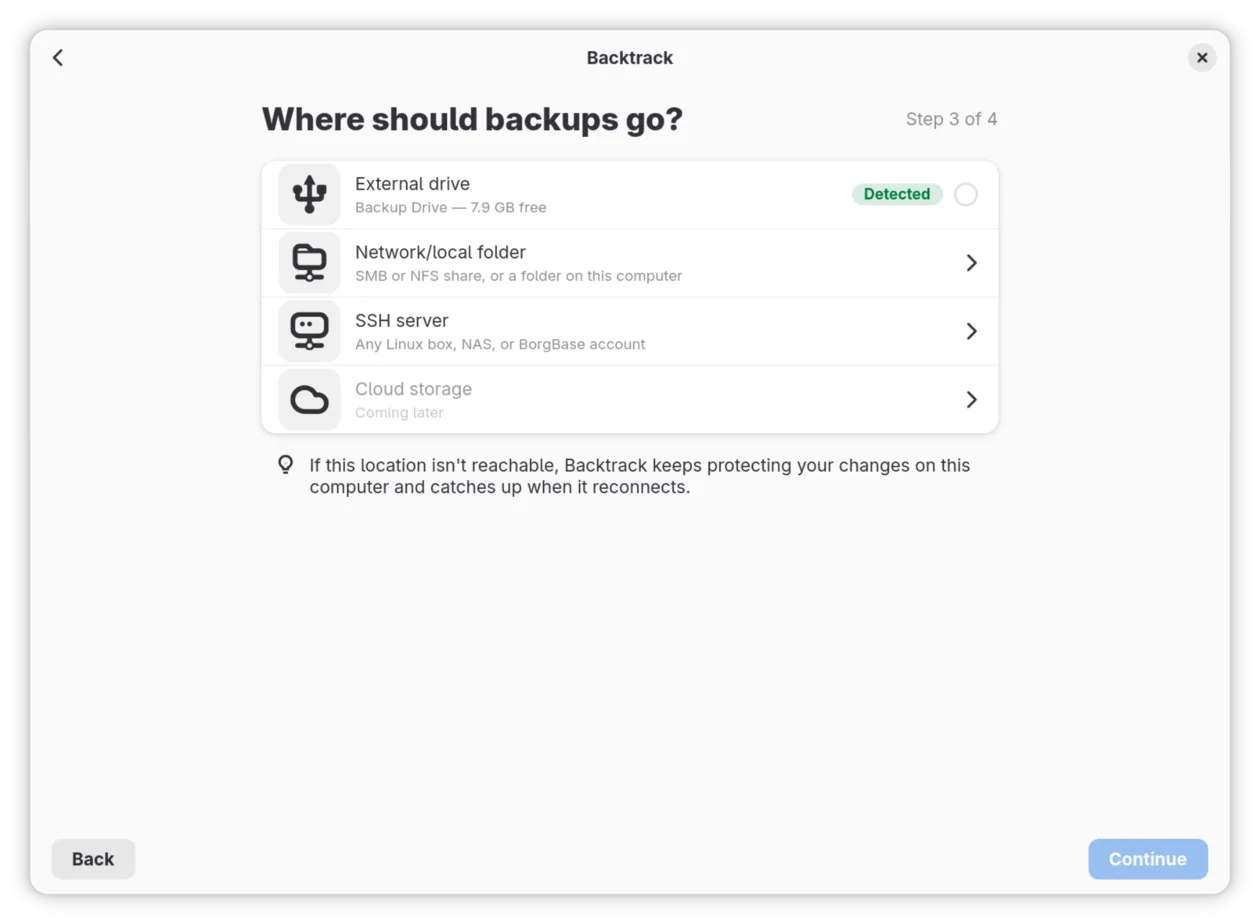
Where should backups go? asks where to keep them. Choose one:
- For a drive: it is listed as External drive, marked Detected, with its name and its free space. Click it.
- For a network folder: click Network/local folder, type the shared
folder’s address, such as
smb://nas.local/backups, and click Connect. The folder button beside the address lets you choose a folder instead, such as a shared folder your file manager has opened. - For an SSH server: click SSH server, type the address, such as
sam@nas.local:backups, and click Test Connection.
Then click Continue. On a drive or a network folder, Backtrack keeps the backups in a folder named Backtrack, inside which each computer has a folder of its own.
-
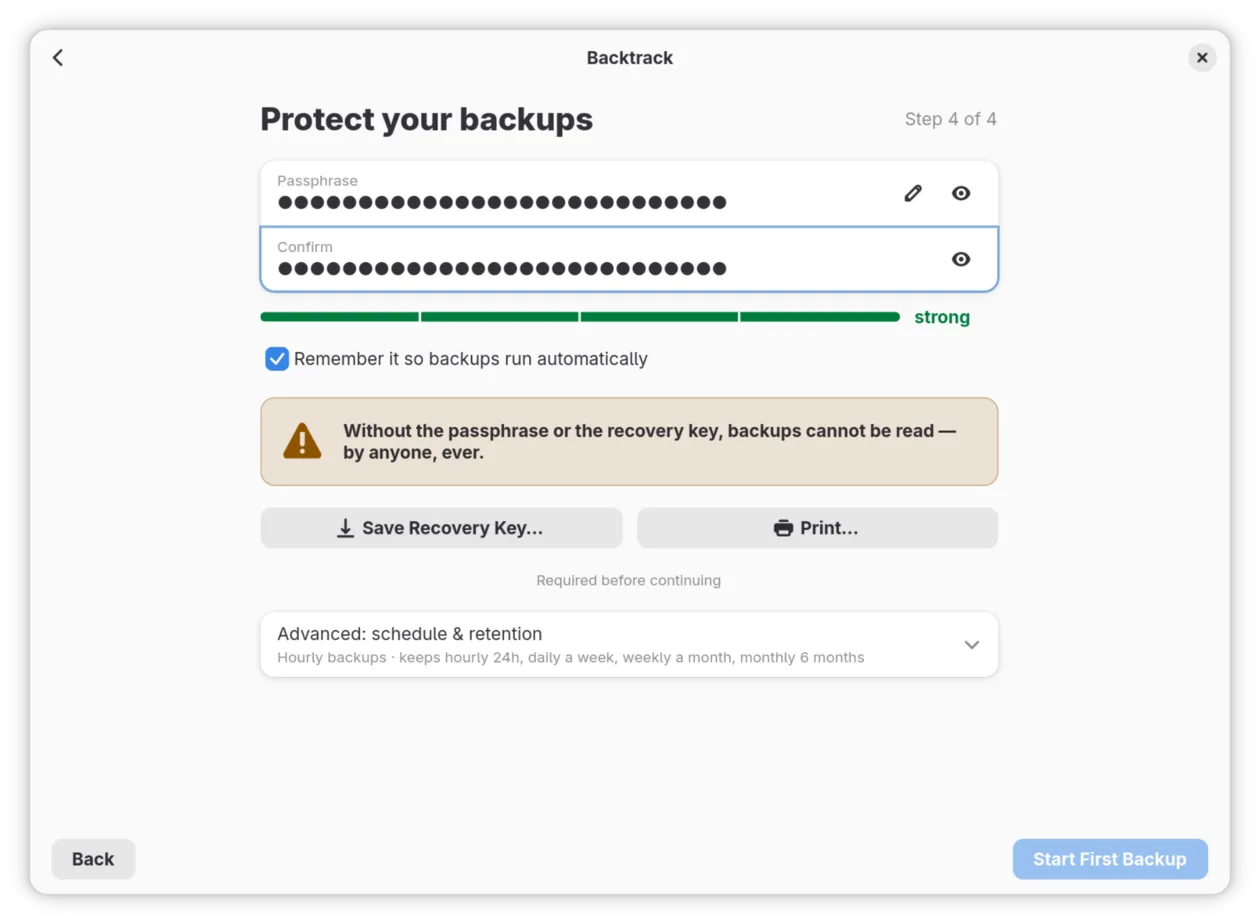
Protect your backups asks for a passphrase. Your backups are encrypted with it, so nobody without it can read them. Type it in Passphrase and again in Confirm. The bar under them says how strong it is; aim for strong. A few unrelated words make a passphrase that is strong and still easy to remember.
Leave Remember it so backups run automatically ticked. Backtrack then keeps the passphrase in your keyring and backs up without asking for it.
-
Save the recovery key. Click Save Recovery Key… and save the file, or click Print… and print it. Backtrack does not carry on until you have done one of them.
The recovery key is a copy of the key your backups are locked with. If the copy kept with the backups is ever damaged, the recovery key and your passphrase open them again. It does not replace your passphrase: you need both. Keep it somewhere other than this computer and the backup drive: in a password manager, on a USB stick you keep elsewhere, or printed on paper.
-
Check the schedule. Advanced: schedule & retention shows it: a backup every hour, keeping the hourly ones for a day, one a day for a week, one a week for a month and one a month for six months. Open it to change it, or change it later in Preferences.
-
Click Start First Backup. Backing up for the first time shows how far it has got.
The first backup copies everything you chose, so it is the slow one. With a large home folder, or a network folder or server as the destination, it can take hours. Once this page is showing, you can close the window and the backup carries on. Later backups copy only what changed since the one before, so they are much quicker.
-
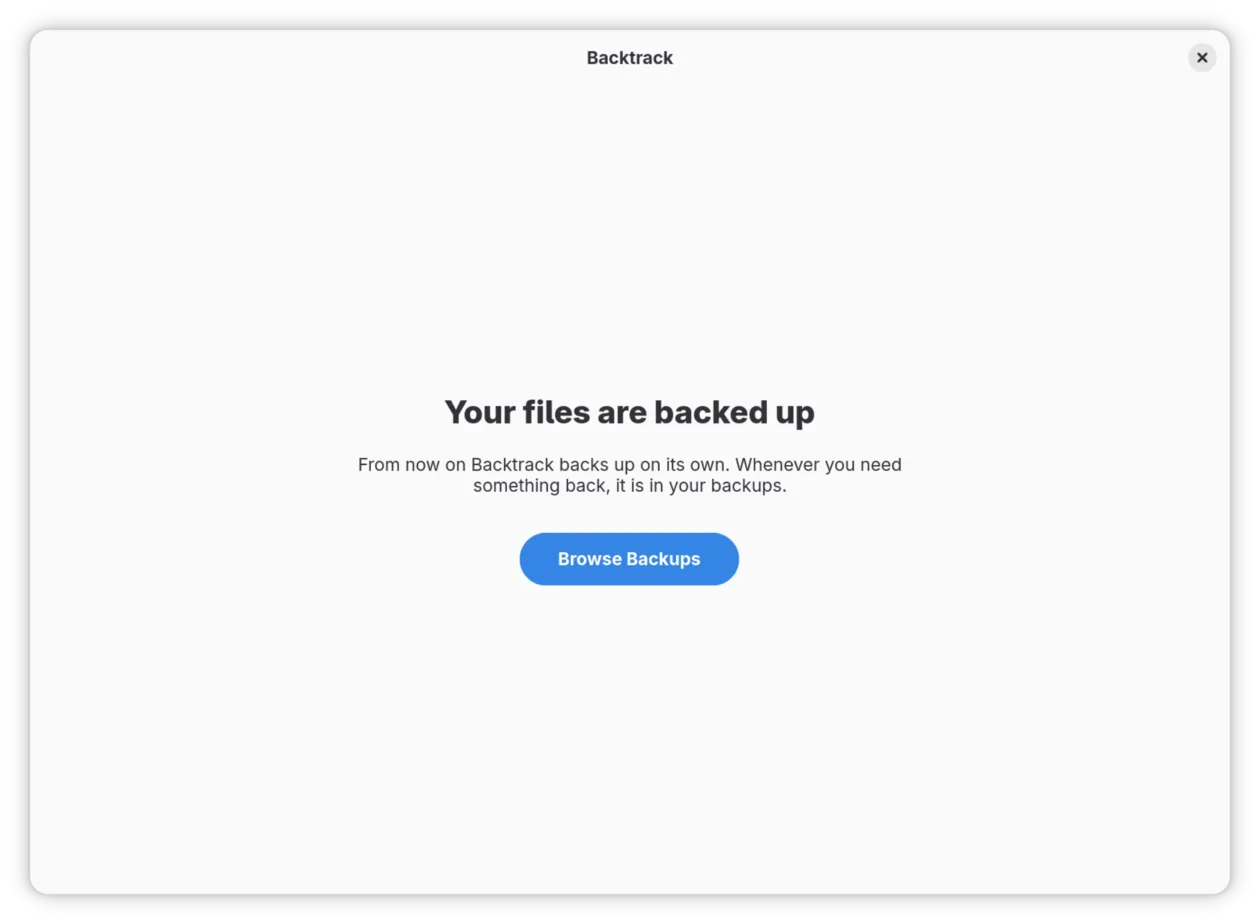
When it has finished, you see Your files are backed up. Click Browse Backups to see them.
Set up an SSH key for a server
Backtrack signs in to an SSH server with your SSH key, never a password, so
the key has to be set up before you choose the server in step 3. If you can
already sign in to the server with ssh without typing a password, skip
this.
-
Make an SSH key, if you have none. In a terminal, run:
ssh-keygen -t ed25519Press Enter at each question. An empty passphrase lets Backtrack use the key without asking.
-
Copy the key to the server, using your account there:
ssh-copy-id sam@nas.localThe first time, it asks whether you trust the server: type
yes. Then it asks for your password on the server, once. -
Check that it worked:
ssh sam@nas.localsigns you in without a password. Typeexitto leave.
For a service such as BorgBase, add your key in the service’s own settings instead, and use the address it gives you.
What Backtrack does from now on
- Every hour it backs up what changed, with the window closed too.
- If the computer was asleep or off when a backup was due, the backup runs when it wakes.
- On a laptop running on battery, it waits for the charger, for up to three hours after the last backup, and then backs up on battery anyway.
- On a connection marked as metered, such as a phone’s hotspot, it waits for an unmetered one.
- While the drive is unplugged, the files you change are kept on this computer, small and encrypted, as snapshots you can browse like backups. Backtrack sends them on when the drive is back.
- It tells you when it needs you, and only then, with a banner in the window and a notification: after a day without a backup, for example. When Backtrack needs you explains each one.
Change your settings
Open the main menu and choose Preferences, or press Ctrl+,. What you change applies at once. The settings are on five pages:
- General: whether Backtrack runs in the background, its notifications, the items in your file manager, and Run Welcome Wizard Again…, which sets everything up again and keeps your backups.
- Backup: how often to back up (Every hour, Every day, Every week or Only when I ask), Back up on battery power, how long to Wait for mains power, Back up on metered connections, what to back up and what to leave out.
- Storage: where the backups are, how many are kept, whether to Keep protecting changes on this computer while the destination is away and how much room that may take, and Snapper.
- Security: Change Passphrase…, Remember passphrase, and saving or printing the recovery key again.
- Advanced: Verify Repository Health…, which checks the backups for damage, as well as freeing up space, compression, limiting how fast Backtrack uploads, and its logs.
Already have backups?
If you have backups already, from an earlier Backtrack or another computer, open them instead of starting again.
- On the welcome page, click Already have backups? Import….
- Where are your backups? asks where they are. Click Choose Folder… and choose the folder that holds them. For Backtrack’s backups on a drive, that is the folder named after the computer they came from, inside the drive’s Backtrack folder. For backups on an SSH server, type the address in SSH server address and click the tick at its end.
- Enter your passphrase asks for the passphrase they were made with. Type it and click Open Backups.
- Welcome back. Restore this computer? offers to bring your files back onto this computer. Move to a new computer goes on from here.
Backtrack also opens backups made by Vorta or Pika Backup, which use Borg as it does. You can browse them, search them and restore from them. Some need something different in step 3:
- Backups made without a passphrase, such as Vorta’s unencrypted ones and Pika Backup’s made with Continue Unencrypted, open without asking for one.
- Backups whose key is in a key file, which Vorta offers, first ask you to
Choose the key file. Borg keeps it on the computer that made the
backups, in the hidden folder
.config/borg/keysin the home folder. Copy it from there, choose it with Choose Key File…, and then type the passphrase.
If you carry on backing up into another program’s backups, Backtrack thins out only its own older backups and leaves the other program’s alone.
If it did not go as described
- Your drive is not listed in step 3. Plug it in and wait until your file manager shows it. If it is listed in the file manager but not in Backtrack, choose Network/local folder and pick the drive with the folder button.
- Step 3 says “Existing Backtrack/Borg backup found — use it?” There are backups there already. Use It carries on backing up into them, after asking for their passphrase. Choose Another goes back to choose somewhere else.
- Test Connection says the server did not let Backtrack sign in. Your SSH key is not set up for that server yet. Follow Set up an SSH key for a server, then try again.
- Already have backups? says “No backups were found there.” The folder you chose holds the backups one level further down. Choose the folder named after the computer, inside Backtrack.
Where to go next
Get a file back from an earlier backup: find a file as it was, and bring it back.