
When your old computer is lost, broken or simply replaced, your backups can bring everything onto a new one. This guide installs Backtrack on the new computer, opens your backups there, and restores your files, all of them or the folders you choose. It ends with the new computer backing itself up.
Before you start
- You can reach your backups from the new computer: the backup drive is plugged in, the network folder is open in the file manager, or, for an SSH server, your SSH key is set up on the new computer (Set up an SSH key for a server).
- You know the passphrase your backups were made with. The recovery key cannot replace it.
- The new computer has room for your files. Backtrack checks before it starts, and says if it has not.
Restore your files
-
Install Backtrack on the new computer. Install Backtrack says how.
-
Open Backtrack. On Welcome to Backtrack, click Already have backups? Import….
-
Where are your backups? asks where they are.
- On a drive or a network folder, click Choose Folder…. Open the Backtrack folder, choose the folder named after your old computer inside it, and click Choose.
- On an SSH server, type the address you used before, such as
sam@nas.local:backups, in SSH server address, and click the tick at its end.
-
Enter your passphrase asks for the passphrase the backups were made with. Type it, leave Remember it so backups run automatically ticked, and click Open Backups.
-
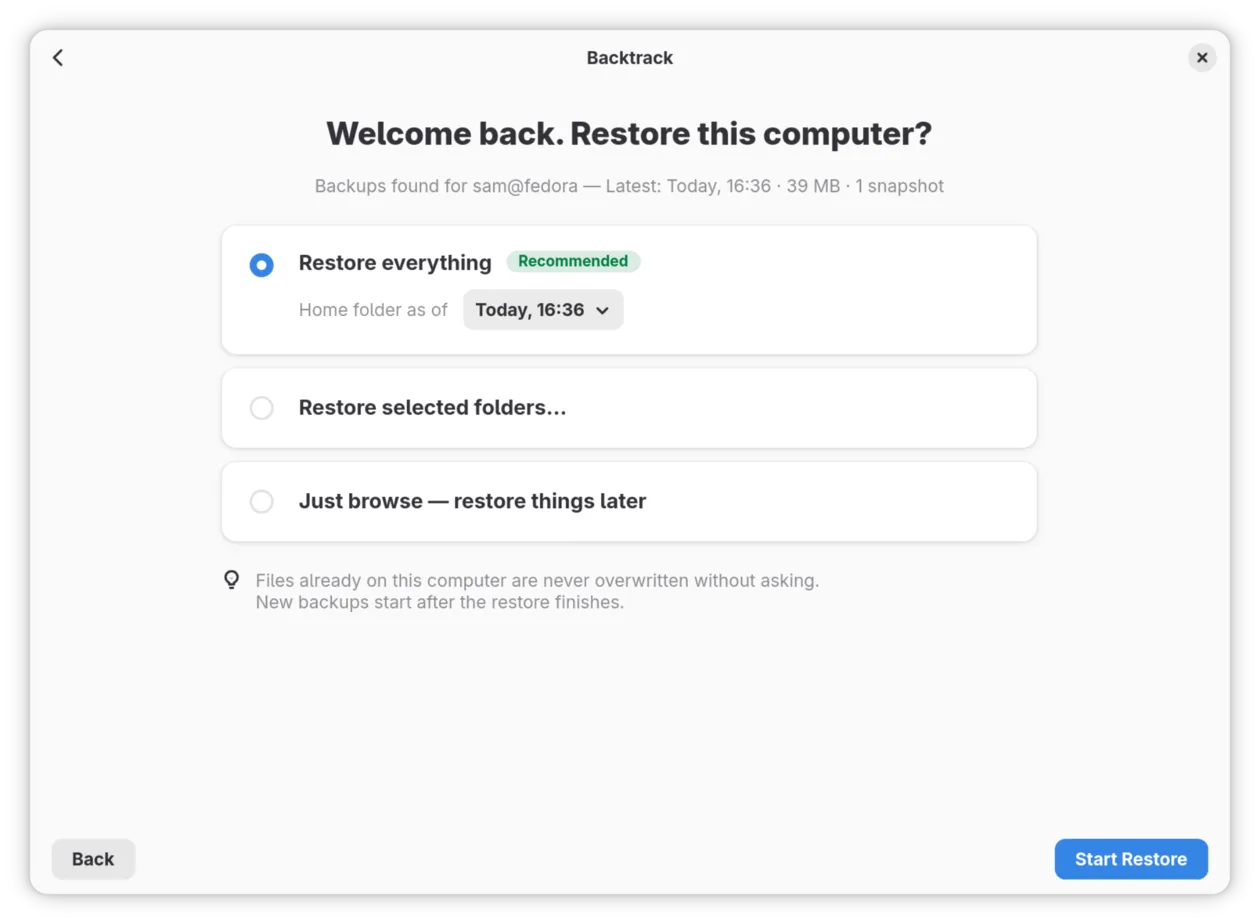
Welcome back. Restore this computer? says whose backups these are and how recent the latest is. Choose one:
- Restore everything, the recommended choice, brings back your whole home folder as it was at the latest backup. To go back further, choose an earlier backup beside Home folder as of. Click Start Restore.
- Restore selected folders… lets you choose. Click Choose Folders…, untick what you do not want, and click Start Restore. Settings and other files are the hidden folders and loose files in your home folder, where programs keep their settings.
- Just browse — restore things later restores nothing and opens the backups to look through. Click Browse Backups.
-
Restoring Your Files shows how far it has got, how much is left, and about how long it will take, folder by folder, smallest first. You can close the window and go on using the computer: the restore carries on, and opening Backtrack brings the window back. If the computer restarts, the restore carries on from where it was.
To stop for a while, click Pause, and Resume to carry on.
-
When it has finished, you see Your files are back, with the number of files restored. Click Open Backtrack.
From then on, the new computer backs up on its own, into the same backups, starting straight away. It backs up the folders your old computer did.
Files that were already on the new computer
Backtrack never overwrites a file that is already on the new computer without asking. If some of them differ from the backup’s copies, the end of the restore says how many, and offers Choose Which to Keep….
- Click Choose Which to Keep…. It says how many files would be replaced.
- Choose one:
- Keep Both Versions keeps the new computer’s file and puts the backup’s beside it.
- Replace Changed Files puts the backup’s copies in their place. Review… lists them first, so that you can untick any to leave as they are.
- Cancel leaves the question for later.
Every file a restore replaces is kept for 30 days, in case you change your mind.
Stopping a restore
Click Cancel while it restores. Stop restoring your files? asks what to do with what has been restored so far:
- Continue Restoring carries on.
- Keep what’s restored so far stops and keeps it.
- Discard stops and takes away what it restored, leaving alone anything you have changed since.
Files that were on the new computer before are not touched either way, and neither are your backups.
If it did not go as described
- “That passphrase does not open these backups.” Type the passphrase the backups were made with, which is not always the one you use elsewhere. If it is forgotten, the backups cannot be opened: the recovery key cannot bring back a passphrase.
- “No backups were found there.” The folder you chose holds the backups one level further down. Choose the folder named after your old computer, inside Backtrack.
- “Restoring needs about … and this computer has … free.” Choose Restore selected folders… and leave some out, or make room first.
- Restoring stopped, with a reason. Usually the backup drive was unplugged or the network went away. Put it right, then click Try Again: it carries on from where it stopped. A notification also says when a restore has stopped.
- Back Up Now says backups start once this computer has been restored. Backups wait for the restore to finish, so that they do not back up a half-restored home folder.
Where to go next
Get a file back from an earlier backup, for when you need one file as it was rather than everything.