
Two mistakes happen to everyone: a file deleted, with the Trash emptied since, and a document saved over with a worse version. Your backups have both as they were. This guide finds each in an earlier backup and puts it back, then covers restoring a whole folder, undoing a restore, and restoring to somewhere else.
Open the folder in Backtrack
- From GNOME Files or Dolphin, if Backtrack’s items are installed (Add Backtrack to your file manager’s menu): right-click the empty space of the folder and choose Browse Backups of This Folder…, or right-click the spoiled document and choose Restore Previous Version…, which opens the window with it selected.
- From Backtrack itself, open Backtrack, then double-click your way down to the folder. Alt+Up goes back up.
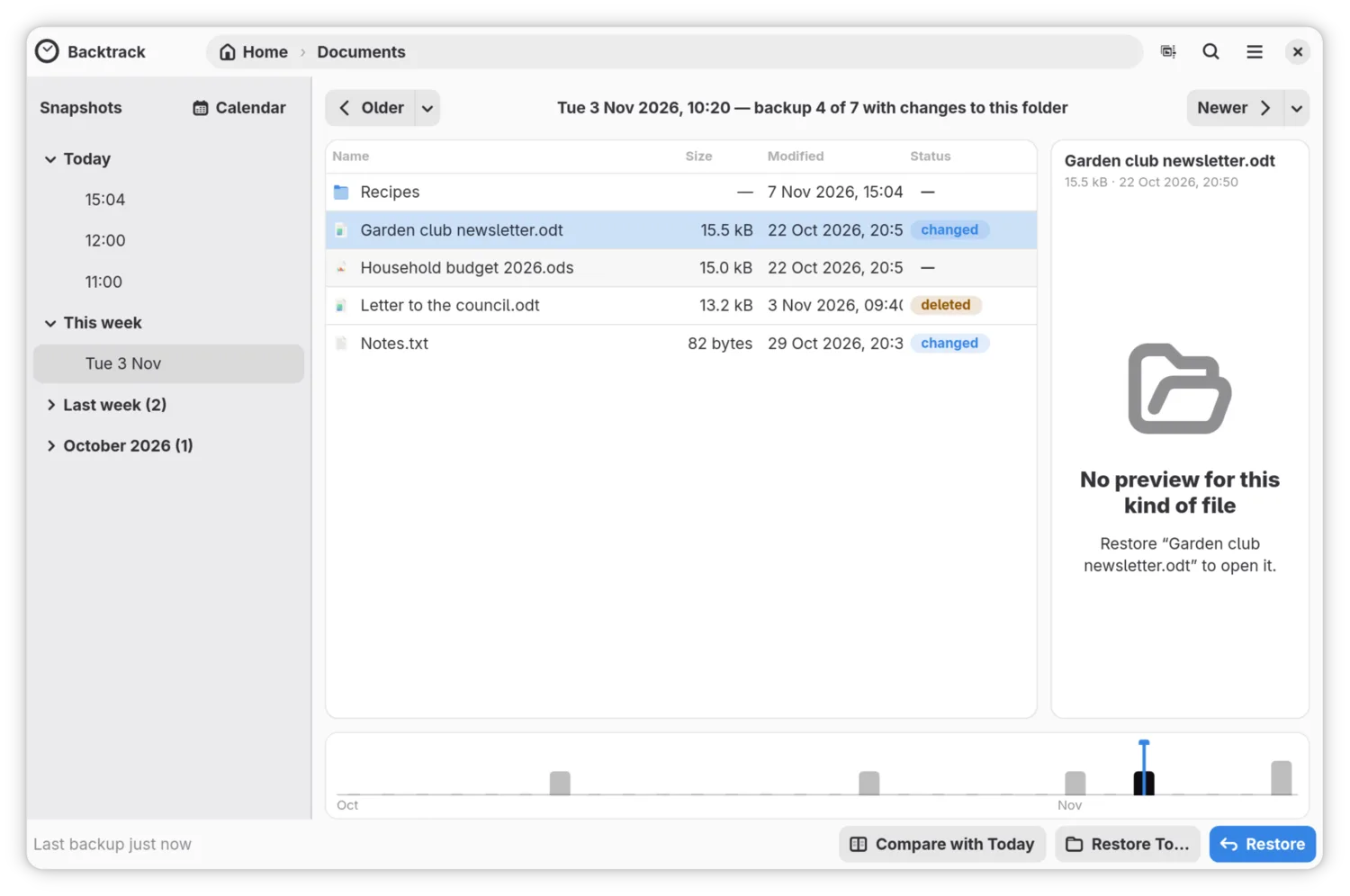
The window lists the backups on the left, under Snapshots, grouped into Today, Yesterday, This week and earlier months. The folder’s files are in the middle, and a preview of the selected file is on the right. The bar along the bottom is the whole history, one mark per day.
Bring back a deleted file
-
Open the folder the file was in.
-
Click Older, or press Ctrl+Left, until the file is in the list. Each click goes one backup back. The line at the top says which backup you are looking at, such as “Wed 12 Jun 2026, 09:00 — backup 3 of 47”. The list shows only the backups in which this folder changed.
To go back further in one go, click a backup in the list on the left, click Calendar and choose a shaded day, or click a day on the bar along the bottom.
-
In those backups, the file is marked deleted: the newest backup does not have it. Click it, and the preview shows it as it was.
-
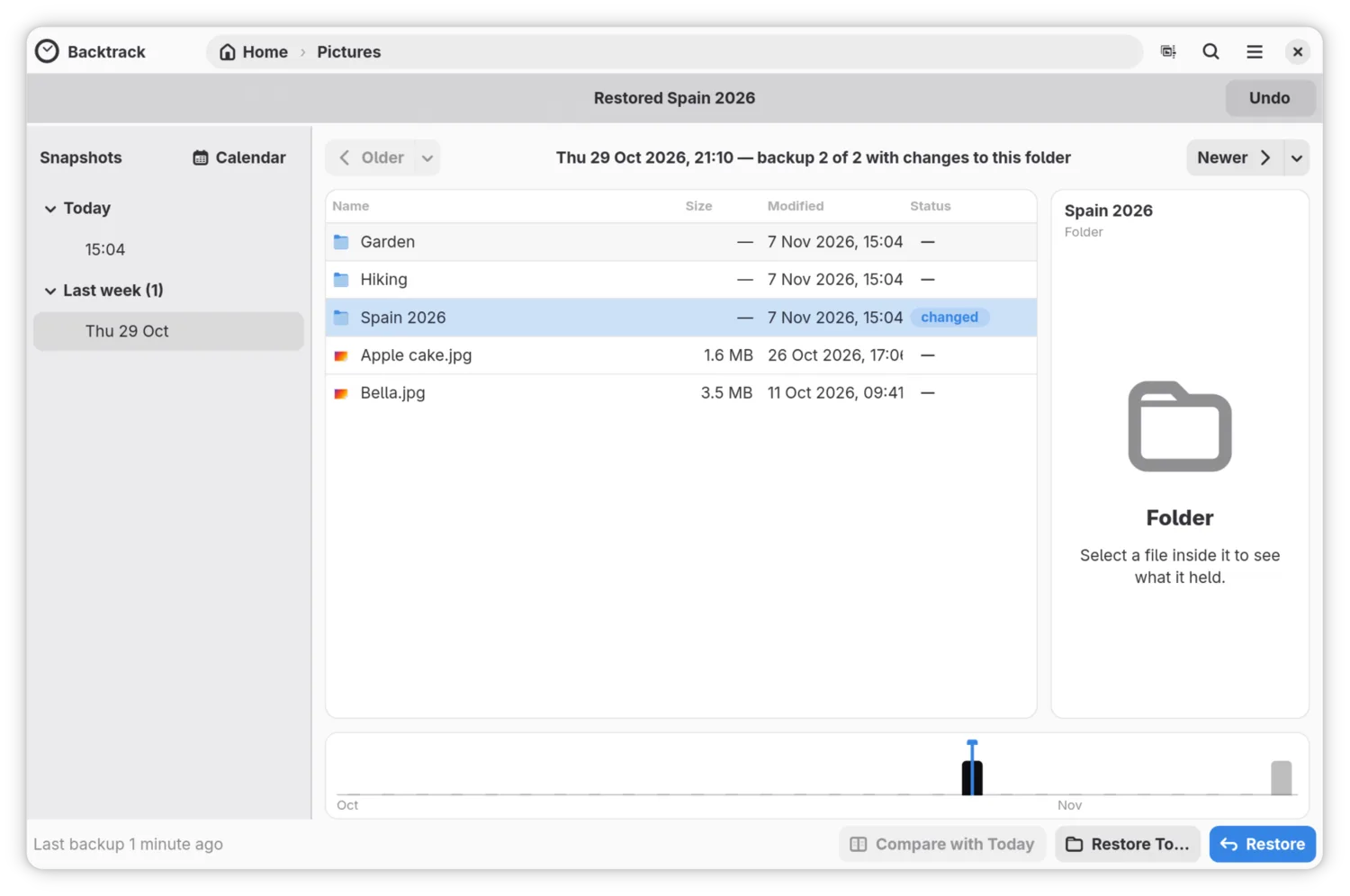
Click Restore, or press Ctrl+R. The file goes back into its folder on your computer. A bar under the header says Restored and the file’s name, with an Undo button.
If you do not know which folder the file was in, Find a lost file with search finds it by name.
Bring back a document as it was before a change
-
Open the document’s folder, or right-click the document in your file manager and choose Restore Previous Version….
-
Click Older until the preview shows the version you want. In the backups before its last change, the document is marked changed: the newest backup has a newer version.
To jump from one version to the next, click the small arrow beside Older and choose Previous change to the document’s name. Newer has Next change to in the same place.
-
To see exactly what differs, click Compare with Today, or press Ctrl+D. It shows this version beside the one on your computer, with what was added and removed marked.
-
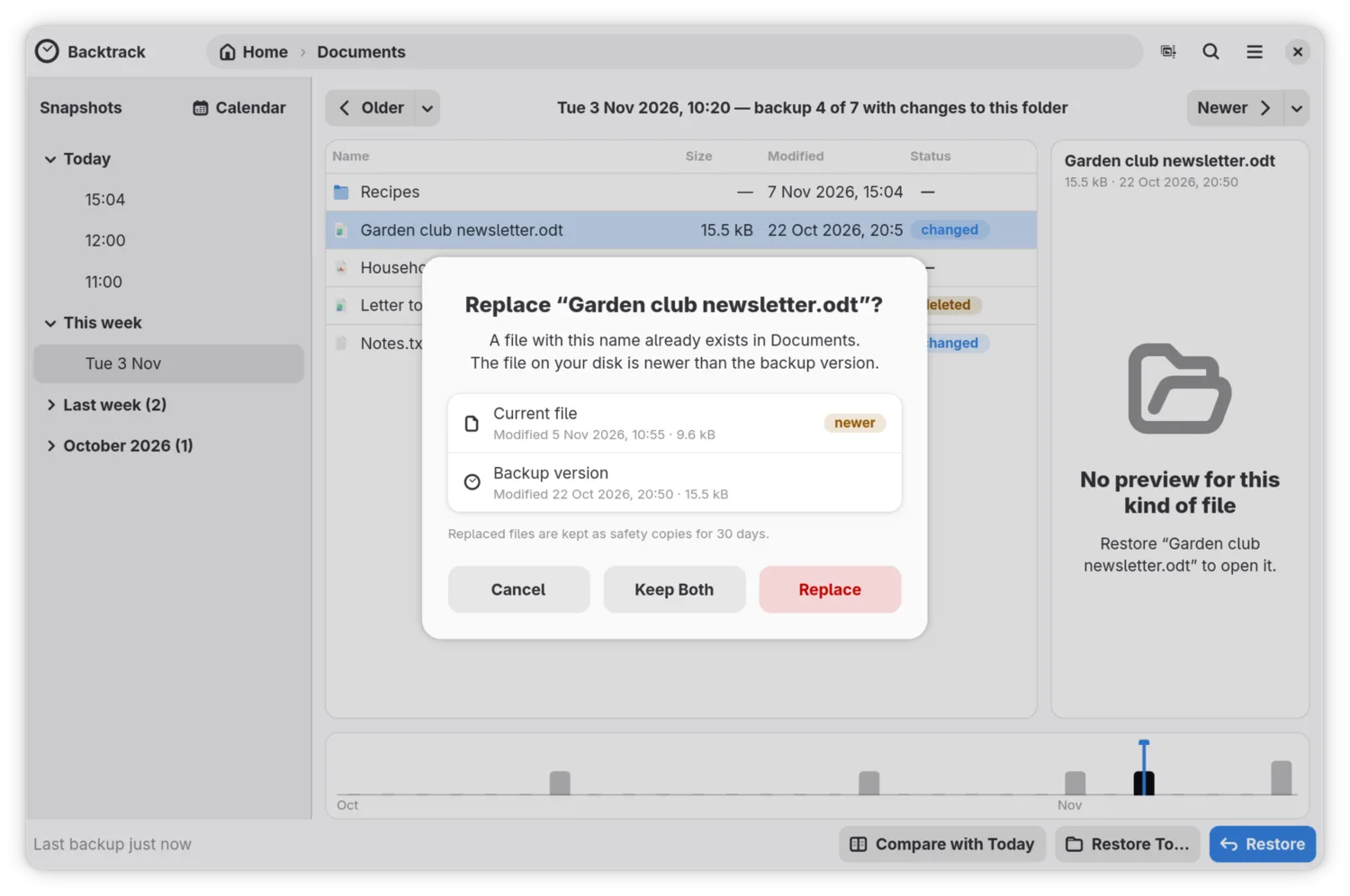
Click Restore. Backtrack asks Replace and the document’s name, such as Replace “newsletter.odt”?, showing when each copy was last changed and which is newer:
- Replace puts the backup’s version in its place. The file it replaces is kept for 30 days, in case you change your mind.
- Keep Both puts the backup’s version under the document’s name, and
renames the one that was there with “(current)” added, such as
newsletter (current).odt. - Cancel changes nothing.
Restore a whole folder
-
Open the folder, and go back to the backup you want, as above.
-
Click a blank part of the list, so that nothing is selected, and click Restore. The whole folder is restored. If nothing on your computer is in the way, it is restored at once.
-
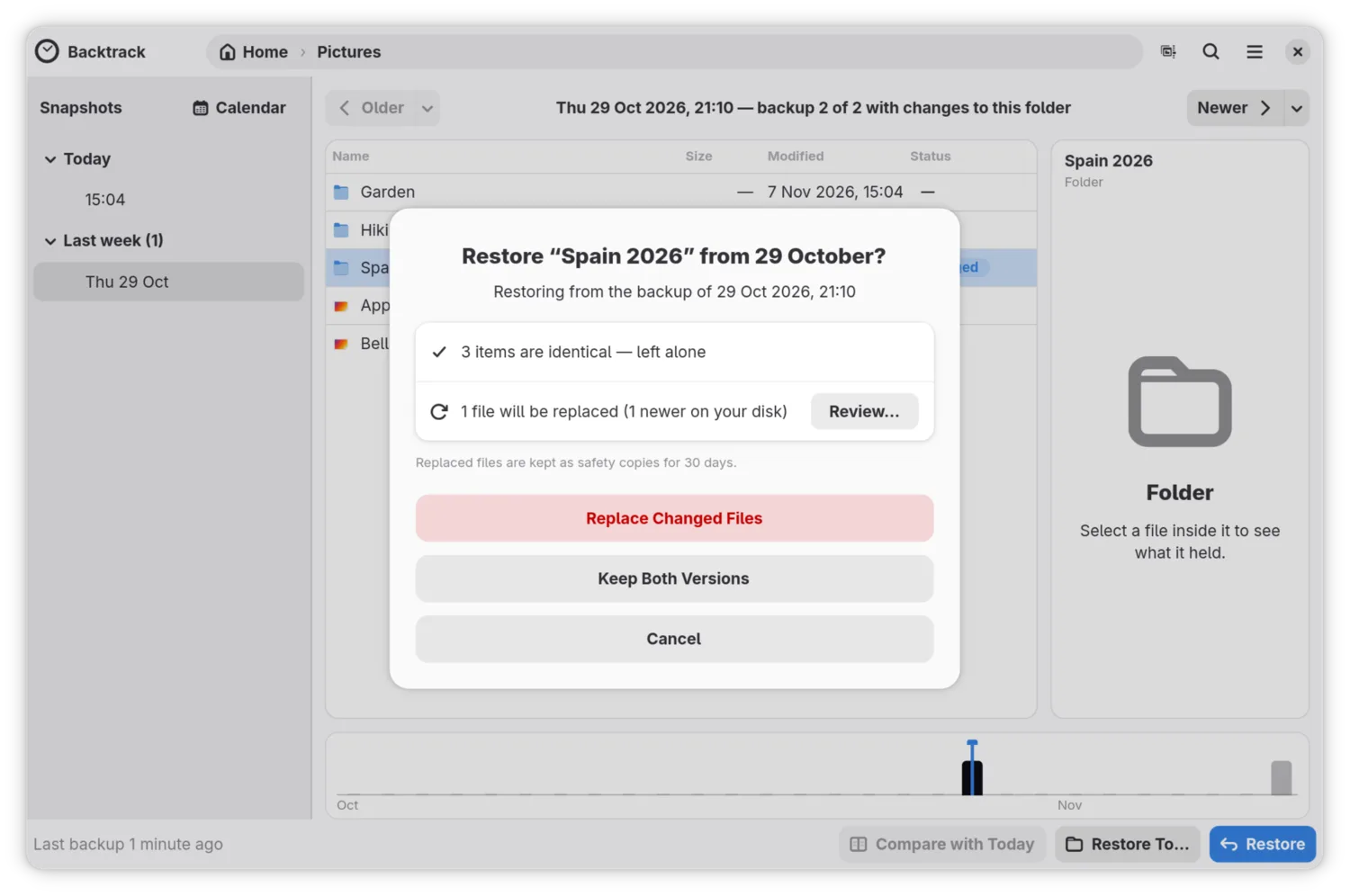
Otherwise Backtrack asks once for the whole folder. It says how many files are identical and left alone, how many would be replaced, how many are only in the backup and will be added, and how many are only on your computer and kept. Nothing is deleted.
-
Choose one:
- Keep Both Versions keeps every file on your computer, with the backup’s copy beside it, as Keep Both does for one file.
- Replace Changed Files puts the backup’s copies in their place.
- Review… lists each file that would be replaced. Untick any you want left exactly as they are, then click the Replace button, which says how many files it will replace.
- Cancel changes nothing.
Undo a restore
After a restore, the bar under the header offers Undo until you use it or restore something else. Undo puts everything back as it was before the restore: what it added is removed, what it replaced comes back, and files it kept both of get their names back.
Get back a file a restore replaced
Every file a restore replaces is kept for 30 days. If those copies grow past 5 GB, the oldest go sooner.
- Open the main menu and choose Recently Replaced Files. It lists them, grouped by when they were replaced.
- Click Put Back beside the one you want. Whatever is in its place now is kept here in turn.
Restore a copy somewhere else
To get an earlier version without touching what is on your computer:
- Select it in the backup, and click Restore To…, or press Ctrl+Shift+R.
- Choose a folder, and click Restore Here. Backtrack makes a folder
there named after what you restored and the backup’s date, such as
Restored website 20 Sep 2026, and puts the copy inside.
Nothing on your computer is replaced, so there is no question and no Undo.
If it did not go as described
- The file is in no backup. It may have been in a folder you do not back up, or existed only between two backups. If it went to the Trash, Get back a file you deleted between two backups can still bring it back.
- “… isn’t in this backup — try a more recent one”. The selected item is not in the backup you are looking at. Click Newer and try again.
- “Everything is already up to date”. The backup’s copy is the same as the one on your computer, so there was nothing to restore.
- “No preview for this kind of file”. Backtrack previews text and pictures only. Restore it, or use Restore To… to get a copy you can open.
- The list on the left seems to skip backups. It shows only the backups in which this folder changed. Show All Backups, in the main menu, lists every one.
Where to go next
Find a lost file with search, for when you know a file’s name but not where it was.