
Backtrack backs up every hour, so a file you write at 12:15 and delete at 12:45 is in no backup: it was not there at 12:00, and was gone by 13:00. If you deleted it by moving it to the Trash, though, the Trash still has it, and Backtrack shows it in its timeline until the Trash is emptied. This guide gets such a file back, and puts it back in the Trash if you change your mind.
Get it back
-
Open the folder the file was in, in Backtrack’s window. In GNOME Files or Dolphin, right-click the folder’s empty space and choose Browse Backups of This Folder….
-
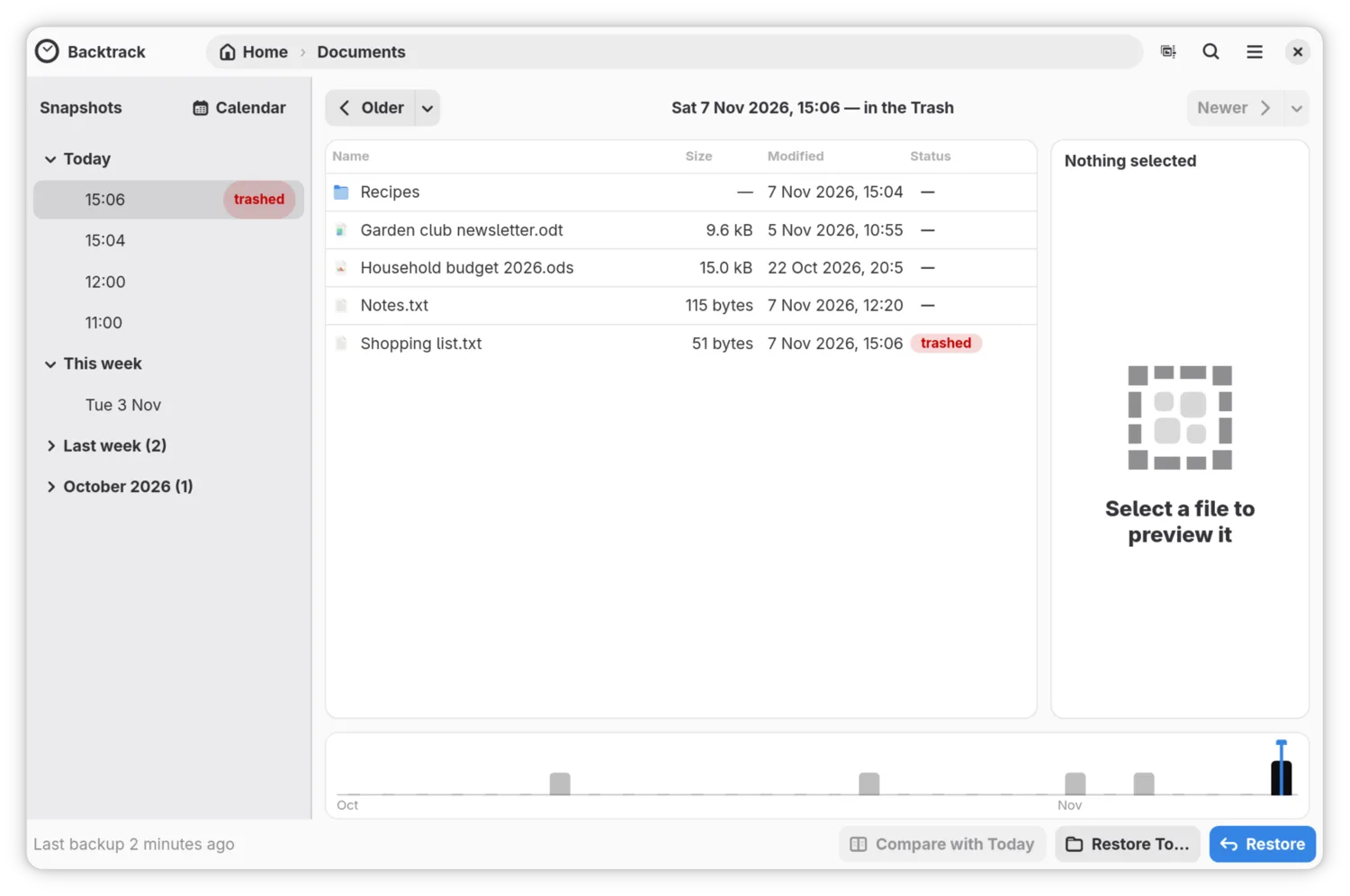
In the list of backups on the left, find the one marked trashed, at about the time you deleted the file. Something deleted since the last backup is at the top, above the newest backup. Click it.
-
The folder appears as it was just before, with what went to the Trash back in its place, marked trashed. Click the file: the preview shows the Trash’s copy.
-
Click Restore, or press Ctrl+R. The file leaves the Trash and goes back where it was, as your file manager’s own Restore would. If something else now has its name, Backtrack asks whether to Replace it or Keep Both, as for any restore.
-
A bar under the header says what was restored, with Undo.
None of this needs your backup drive: the Trash is on this computer.
Put it back in the Trash
Click Undo on the bar. The file goes back into the Trash, with the time
you first deleted it, and its entry comes back in the list. If something
else with the same name has gone into the Trash since, it goes back beside it
with .2 added to its name. Undo never deletes anything that came from the
Trash.
A whole folder
Restoring a whole folder from a trashed entry brings back both halves in one go: what the backup before had, and what went to the Trash since. Backtrack asks once, as it does for any folder (Get a file back from an earlier backup).
Find it by name
Search finds what is in the Trash as well. A file that no backup has says “Moved to the Trash” with the date and time, and “in no backup”. Restore Latest Version brings it back.
What the Trash cannot bring back
- Anything that never reached the Trash, or has left it: a file deleted with Shift+Delete or from a terminal, or a Trash that has been emptied.
- The earlier of two copies. If the same file went to the Trash twice between two backups, Backtrack shows the later copy. Your file manager’s Trash still has both.
- Another drive’s Trash, unless that drive holds a folder you back up.
- Files from places you do not back up, which Backtrack leaves out here too.
- A file inside a folder that went to the Trash, by searching for its name. Search for the folder instead, or open its trashed entry and look inside.
If it did not go as described
- There is no trashed entry. Either nothing went to the Trash from this folder that a backup does not already have, or the Trash has been emptied. If the file was unchanged since a backup, that backup has it: Get a file back from an earlier backup.
- The entry is there but the folder looks empty. It says “Nothing from the Trash here”: what went to the Trash then came from another folder. Open that folder instead.
How Backtrack reads the Trash explains the details, for developers.