
When you remember a file’s name, or part of it, but not where it was or when it went, search looks through every backup at once. This guide finds a download that is no longer on your computer and brings it back, then picks the right version of a photo with Compare with Today.
Find a file that is gone
-
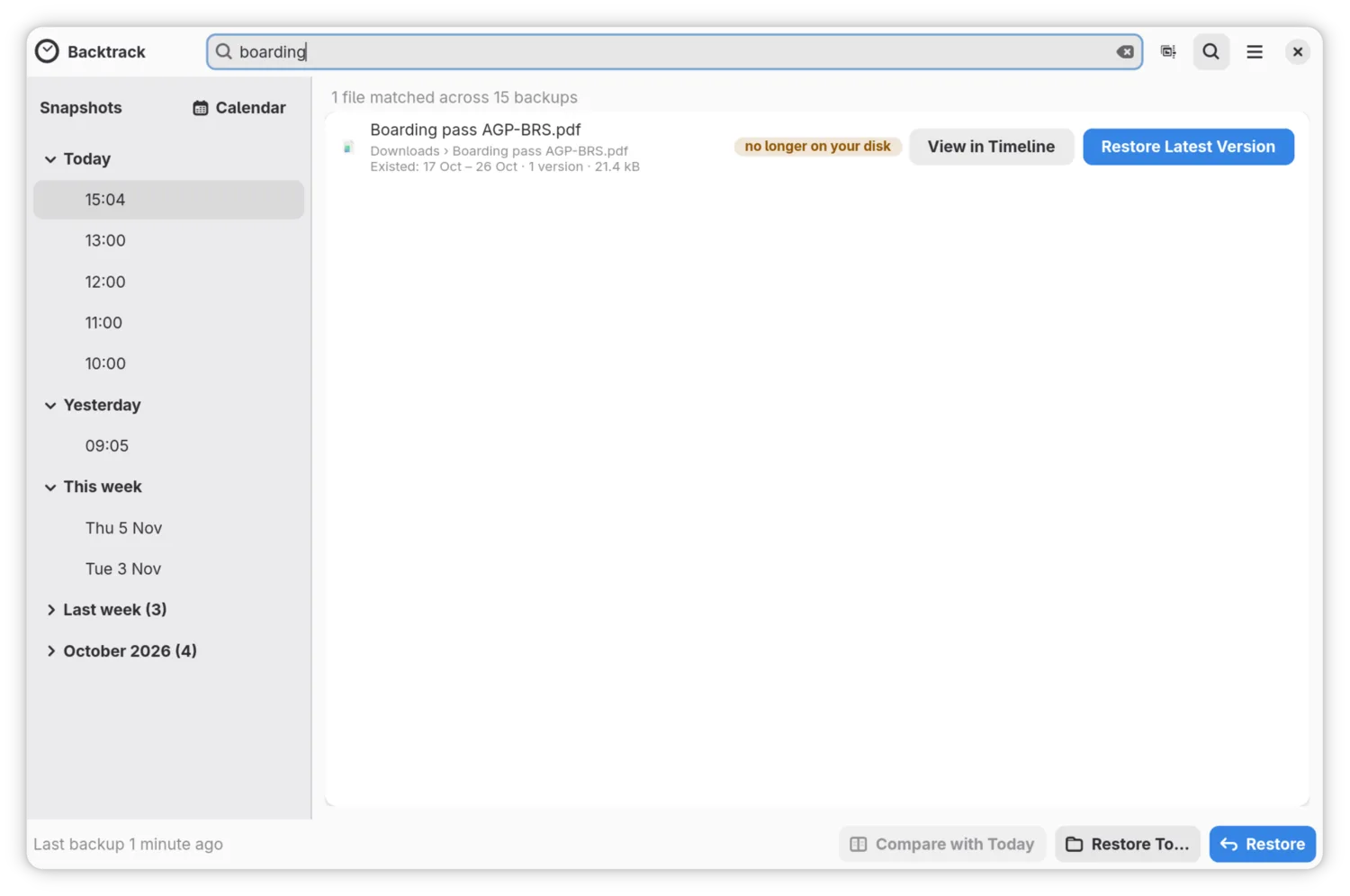
Open Backtrack and click the magnifying glass at the top of the window, or press Ctrl+F. A search box, Search every backup, takes the place of the folder’s name.
-
Type part of the file’s name, two letters or more, such as
boarding. Results appear as you type, with how many files matched across how many backups. -
Read the results. Files that are no longer on your computer come first, marked no longer on your disk. Under each name is the folder it was in, and when it existed, such as “Existed: 26 Jun – 1 Jul · 8 versions · 214.0 kB”. A file still on your computer ends with “today”.
-
Click Restore Latest Version on the file. Backtrack puts the newest copy it has back into the folder it was in, closes the search, and shows it there. A bar under the header offers Undo.
To look before you restore, click View in Timeline instead. It opens the folder at the last backup that had the file, with the file selected and shown in the preview. Get a file back from an earlier backup goes on from there.
Choose the right version of a photo
When a picture has been edited and saved over, search finds it, and Compare with Today shows each earlier version beside the one you have now.
-
Search for the picture as above, and click View in Timeline.
-
Click Older to go back one backup at a time. The preview shows the picture as each backup has it.
-
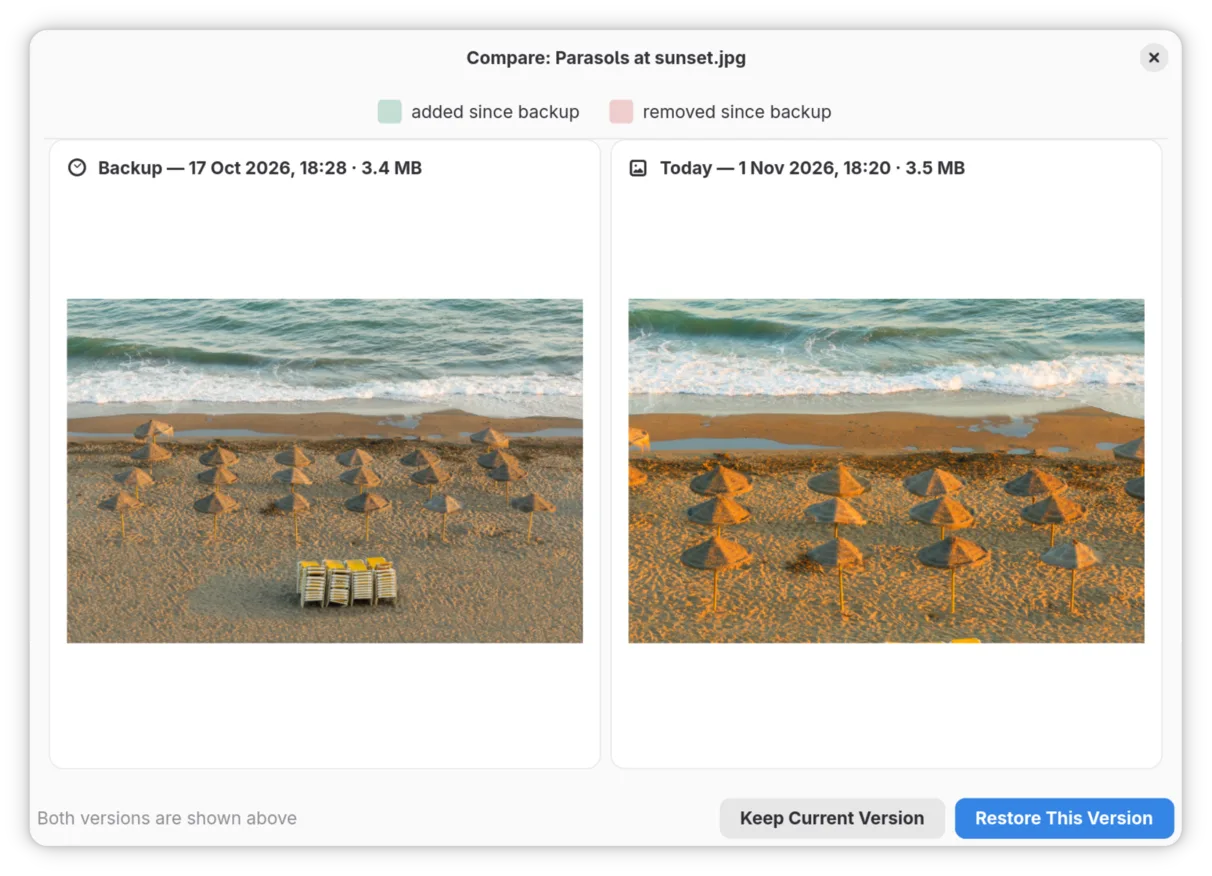
When the preview looks right, click Compare with Today, or press Ctrl+D. A window shows the backup’s version on the left and today’s on the right, each with its date and size.
-
If it is the one you want, click Restore This Version. If not, click Keep Current Version to close the window, go back another backup, and compare again.
-
Since the picture is still on your computer, Backtrack asks whether to Replace it or Keep Both. Keep Both keeps the edited picture too, with “(current)” added to its name.
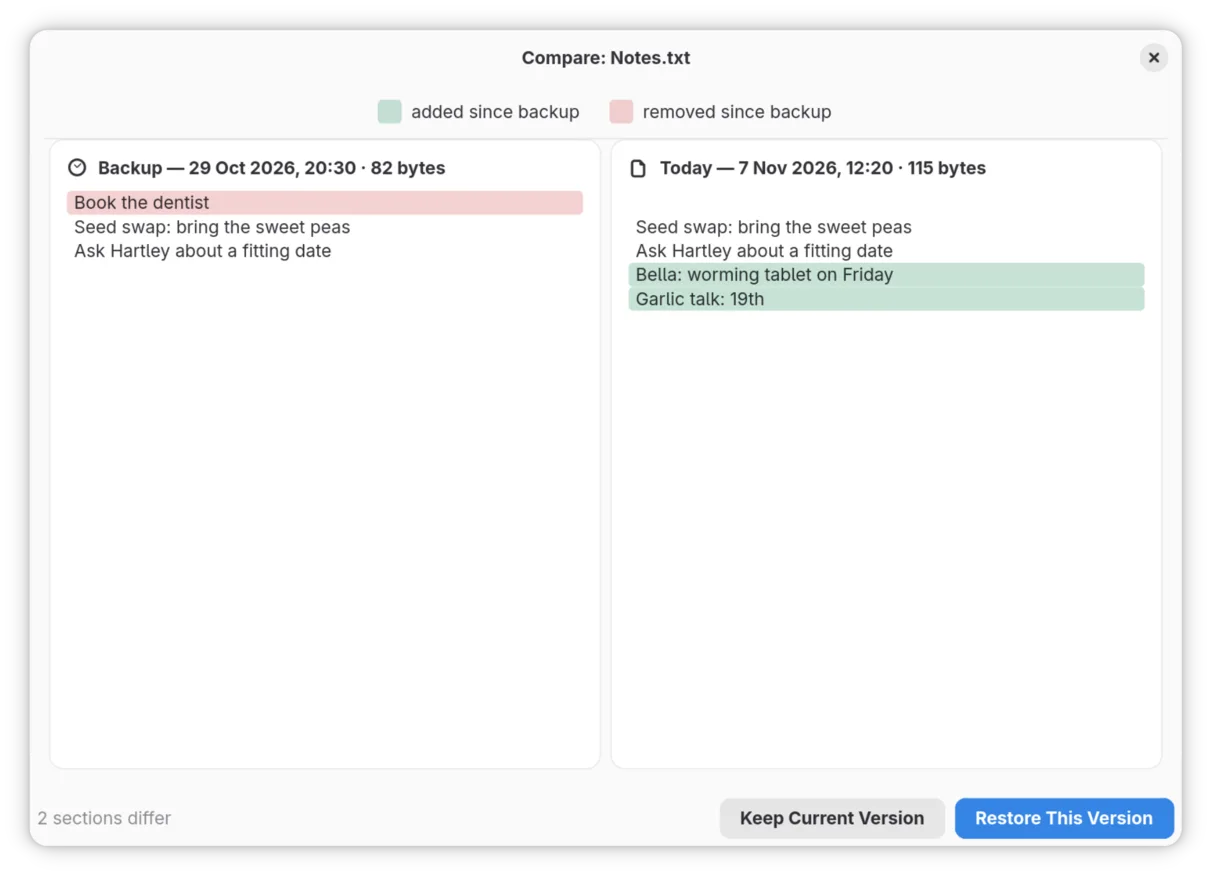
Compare with Today works on documents too. For a text file it shows the two versions side by side, with what was added since the backup and what was removed marked in colour, and says how many sections differ. Other files it cannot show side by side, but it still says whether the two differ.
If it did not go as described
- “Nothing found”. No file in any backup has a name with those letters. Try fewer of them, or another part of the name. A file in a folder you do not back up is in no backup.
- There is no Restore Latest Version button. The file is still on your computer. Use View in Timeline to find an earlier version.
- Compare with Today is greyed out. It needs a file, not a folder, that is still on your computer, while you are looking at a backup.
- “Search needs the background service”. The part of Backtrack that runs in the background is not running. Logging out and back in starts it again.
Where to go next
When Backtrack needs you, on what Backtrack’s warnings mean.