
The quickest way is one command, which works out the right way for your computer. To install Backtrack yourself, the way depends on which Linux distribution you use. Either way, at the end Backtrack is open at its welcome page, ready to set up.
The quick way: one command
-
Open a terminal: search your apps for Terminal.
-
Paste this command with Ctrl+Shift+V and press Enter:
curl -fsSL https://backtrack.tools/install.sh | bashIf the terminal says curl isn’t found, which can happen on Ubuntu, install it with
sudo apt install curland run the command again. -
It shows what it found, such as your distribution and your file manager, and the best way to install Backtrack on it. If it asks whether to add Backtrack to your file manager’s right-click menu, press Enter for yes.
-
It shows its plan, with each command it will run, and asks Go ahead? Press Enter.
-
If it asks for a password, type it and press Enter. Nothing appears on the screen while you type.
-
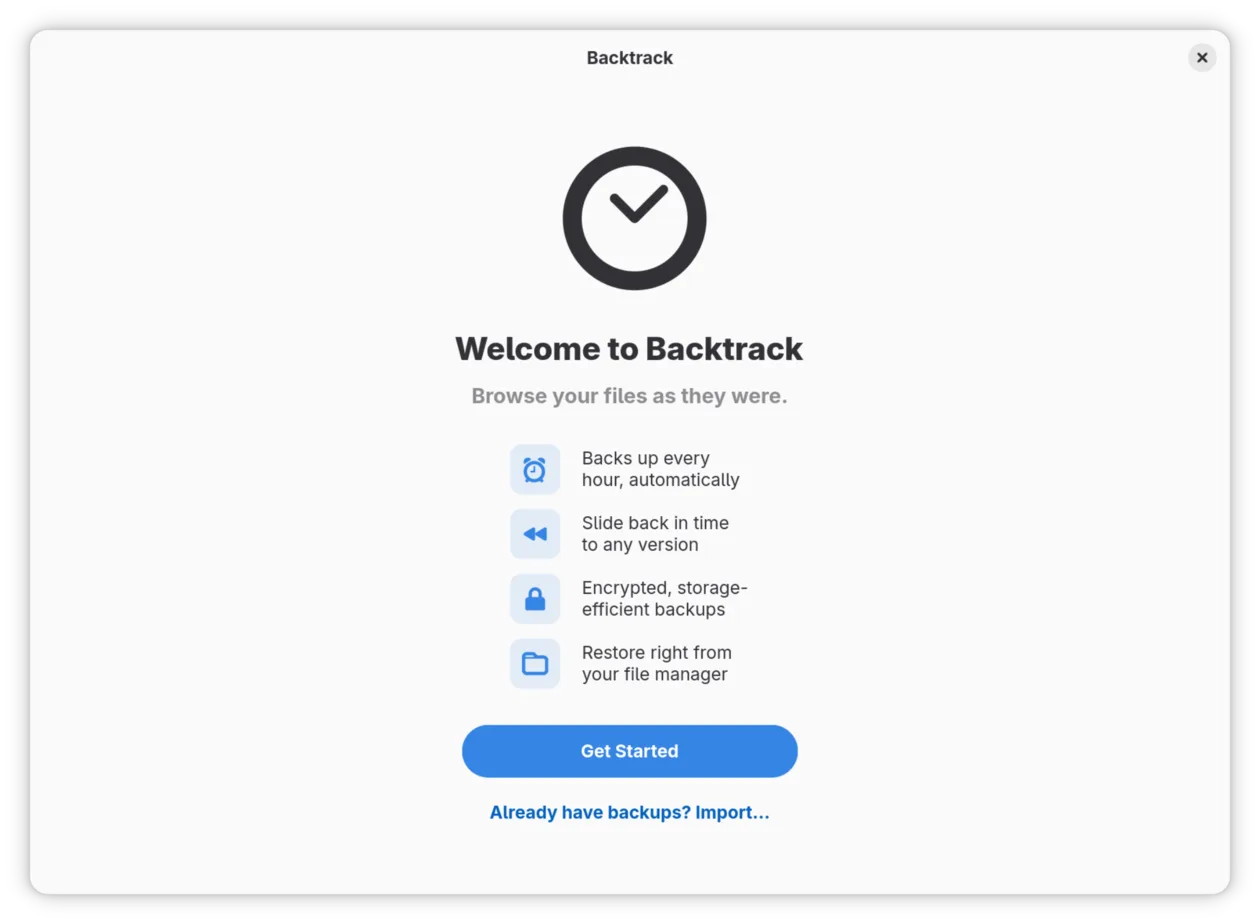
When it says Backtrack is installed, it asks Open Backtrack now? Press Enter. You see Welcome to Backtrack.
What the install script does goes through the script line by line. To install Backtrack yourself instead, read on.
Which way to install
-
Find out which distribution you use, and its version.
- On GNOME (Fedora, Ubuntu and many others), open Settings, choose System, then About. The line Operating System Name names it, for example Fedora Linux 45 (Workstation Edition).
- On KDE Plasma, open System Settings and choose About this System. The line Operating System names it.
-
Find your distribution in this table, and follow the steps it points to.
Your distribution How to install Backtrack Fedora 44 or later From COPR Ubuntu 26.04 or later From the PPA Arch Linux From the AUR Any other, or an older Fedora or Ubuntu The Flatpak Backtrack’s own packages need the libraries that came with GNOME 50. The Flatpak brings everything it needs with it, so it also runs on older distributions such as Debian 13 and RHEL 10, and on Fedora, Ubuntu and Arch if you prefer it. Install Backtrack one way only.
Some steps are commands for a terminal. To open one, search your apps for
Terminal. Paste a command with Ctrl+Shift+V and press Enter. A
command that starts with sudo asks for your password first; nothing appears
on the screen while you type it, so type it and press Enter.
Fedora: from COPR
-
Add Backtrack’s repository. In a terminal, run:
sudo dnf copr enable keithvassallo/backtrackIt explains that this repository is not part of Fedora, and asks Is this ok [y/N]:. Type
yand press Enter. -
Install Backtrack:
sudo dnf install backtrackIt lists what it will install and asks Is this ok [y/N]: again. Type
yand press Enter. On GNOME the list includesbacktrack-nautilus, which adds Backtrack’s items to GNOME Files; on Plasma it includesbacktrack-dolphin, which adds them to Dolphin. -
Search your apps for Backtrack and open it. You see Welcome to Backtrack.
Ubuntu: from the PPA
-
Add Backtrack’s repository. In a terminal, run:
sudo add-apt-repository ppa:keithvassallomt/backtrackIt describes the repository and says Press [ENTER] to continue or Ctrl-c to cancel. Press Enter.
-
Install Backtrack:
sudo apt install backtrackIt lists what it will install, Borg included, and asks Continue? [Y/n]. Press Enter.
-
Search your apps for Backtrack and open it. You see Welcome to Backtrack.
On Ubuntu, the items Backtrack adds to the file manager come in a package of their own. Add Backtrack to your file manager’s menu says how to install it.
Arch Linux: from the AUR
-
Install Backtrack. With an AUR helper such as yay or paru:
yay -S backtrackWithout a helper, build it with
makepkgand install only the main package.makepkg -siwould also install the GNOME Files and Dolphin packages, and with them what both file managers need.sudo pacman -S --needed git base-devel git clone https://aur.archlinux.org/backtrack.git cd backtrack makepkg -s sudo pacman -U backtrack-[0-9]*.pkg.tar.zst -
Search your apps for Backtrack and open it. You see Welcome to Backtrack.
The items for GNOME Files and Dolphin are the AUR’s backtrack-nautilus and
backtrack-dolphin. Add Backtrack to your file manager’s
menu has the details.
Any distribution: the Flatpak
-
Make sure Flatpak is installed. Fedora has it already, as do RHEL 10 and its rebuilds such as AlmaLinux and Rocky Linux. On Ubuntu and Debian, run this in a terminal, and press Enter when it asks Continue? [Y/n]:
sudo apt install flatpak -
Install Backtrack:
flatpak install --user https://dl.friendlyhub.org/repo/appstream/tools.backtrack.Backtrack.flatpakrefBacktrack comes from FriendlyHub, and the GNOME runtime it runs on comes from Flathub. Flatpak may ask whether to keep FriendlyHub for future installations, whether to add Flathub, and whether to install the runtime, and then asks whether to go ahead. Press Enter at each question to answer yes. The first time, the runtime is a download of several hundred megabytes.
-
If Flatpak was new to this computer, log out and back in. Flatpak adds its apps to your list of apps when you log in, so Backtrack is not there until then.
-
Search your apps for Backtrack and open it. You see Welcome to Backtrack.
Network folders on desktops other than GNOME
The Flatpak reaches network folders (smb:// and nfs:// addresses) through
GVfs, a part of GNOME that other desktops, Plasma among them, often leave
out. Drives work without it, and so does a network folder you have mounted
some other way, which you can choose like any other folder. When Backtrack
needs GVfs, the setup wizard says so and gives the command that installs it.
Open Backtrack again once it is installed.
Updating
Backtrack updates with the rest of your system.
- On Fedora and Ubuntu, the system’s own updates include it, whether you install them from the software centre or from the update notification.
- On Arch Linux, update it as you update other AUR packages, for example with
yay -Syu. - For the Flatpak, run
flatpak update. A software centre that handles Flatpaks, such as GNOME Software, updates it with everything else.
Uninstalling
Uninstalling Backtrack leaves your backups where they are. The rest of what stays is under What stays behind.
Fedora
- Close Backtrack’s window if it is open.
- Run
sudo dnf remove backtrack, and answer Is this ok [y/N]: withy. The items in GNOME Files or Dolphin go with it, as does the part of Backtrack that runs in the background.
Ubuntu
- Run
sudo apt purge backtrack, and press Enter at Continue? [Y/n]. The items in the file manager go with it, as does the entry that started Backtrack when you logged in. - Run
sudo apt autoremoveto remove Borg as well, unless something else uses it. - Log out and back in. The part of Backtrack that runs in the background keeps running until you do.
Arch Linux
- Run
sudo pacman -Rs backtrack, addingbacktrack-nautilusorbacktrack-dolphinif you installed them. - Log out and back in.
The Flatpak
-
Stop Backtrack, including the part that runs in the background:
flatpak kill tools.backtrack.BacktrackIf it says that Backtrack is not running, carry on.
-
Uninstall it with its settings:
flatpak uninstall --user --delete-data tools.backtrack.BacktrackIt asks two questions, whether to uninstall it and whether to delete its data. Answer y to both.
-
Remove the entry that started Backtrack when you logged in:
rm ~/.config/autostart/tools.backtrack.Backtrack.desktop -
If no other Flatpak app uses the GNOME runtime, remove it too:
flatpak uninstall --user --unused
What stays behind
-
Your backups stay where Backtrack was saving them. On a drive or a network folder, that is a folder named Backtrack with a folder inside for each computer; on an SSH server, it is the address you gave. To open them again, install Backtrack and choose Already have backups? Import… on its welcome page. To get rid of them, delete that folder.
-
Your passphrase stays in your keyring as Backtrack backup passphrase, if you let Backtrack remember it. A keyring app can delete it: Passwords and Keys on GNOME, KWalletManager on Plasma.
-
With the Fedora, Ubuntu and Arch packages, Backtrack’s settings stay in the hidden folder
.local/share/backtrackin your home folder, along with its catalogue of your backups and its logs. To delete them:rm -r ~/.local/share/backtrackBorg, the program Backtrack backs up with, also keeps notes about your backups, in
.config/borgand.cache/borg. Leave those if you use another Borg program, such as Vorta. The Flatpak keeps all of this inside its own data, which step 2 deleted.
If it did not go as described
- Backtrack is not among your apps after installing the Flatpak. Log out and back in. When Flatpak was installed just before Backtrack, your desktop only finds its apps from the next login.
aptsays it is unable to locate the package backtrack. Either adding the repository did not finish, or this Ubuntu is older than 26.04, for which the PPA has no packages. Run step 1 again and read what it says. On an older Ubuntu, install the Flatpak instead.- Uninstalling the Flatpak ends with “Directory not empty”. Backtrack was
still running while its data was being deleted. The app itself is
uninstalled; delete what is left of its data with
rm -r ~/.var/app/tools.backtrack.Backtrack.
Where to go next
Set up your backups: the welcome wizard, from choosing what to back up to the first backup.