
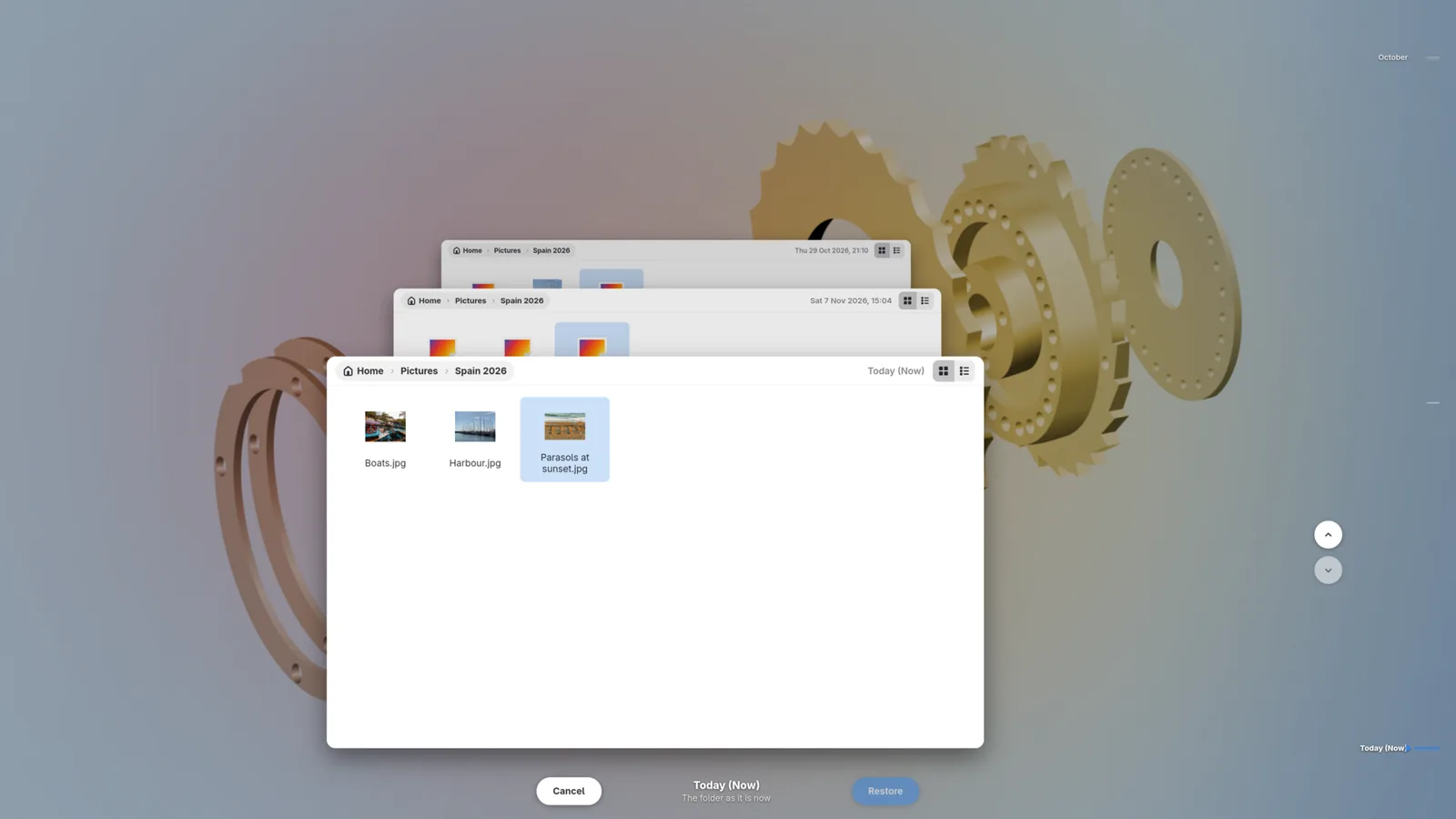
Rewind fills the screen with a folder as it is now, its backups stretching away behind it, and a timeline down the side. Going back in time flies the backups towards you, so you can watch the folder change until it looks the way you remember. This guide opens Rewind from wherever you are, goes back to the moment you want, restores a file, and undoes the restore if it was the wrong one.
Open Rewind
Choose whichever way is closest:
- In Backtrack’s window, click the Rewind button at the top right, choose Rewind… in the main menu, or press Ctrl+T. Rewind opens at the folder, backup and file the window is showing.
- In GNOME Files, right-click a file and choose Rewind This File…, or right-click a folder, or the empty space of the folder you are in, and choose Rewind This Folder…. In Dolphin, the same items are in the Backtrack submenu. These need Backtrack’s items in your file manager (Add Backtrack to your file manager’s menu).
- From your desktop’s app list or dock, right-click Backtrack’s icon and choose Rewind.
- From the tray, on desktops with one, choose Rewind… in Backtrack’s menu.
Opened from anywhere but the window, Rewind starts at Today (Now): the folder as it is now.
Go back to the moment you want
- Press Up, or Page Up, or turn the mouse wheel up, to go one backup back. Down goes one forward. Hold the key down and the stack glides. Home goes to Today (Now) and End to the oldest backup.
- Or use the timeline down the right-hand edge, which has a mark for each backup, oldest at the top. Point at it to spread the marks out, rest on one to see when it was, and click it to fly there. The arrows beside it go one backup older or newer.
- Under the stack, Rewind says which backup you are looking at, such as “Thu 5 Nov 2026, 08:26” and “Backup 3 of 8 with changes to this folder”. It lists only the backups in which the folder changed.
Find the file
The folder in front shows its files as icons, or as a list with the buttons in its title bar. A file marked changed has a newer version in the latest backup; one marked deleted is not in the latest backup at all.
- Double-click a folder, or select it and press Enter, to open it.
- Alt+Up goes up a folder.
- Left and Right move between the icons.
- Ctrl+H shows or hides hidden files.
Restore it
- Click the file to select it.
- Click Restore, under the stack, or press Enter. With nothing selected, the whole folder is restored.
- If something on your computer is in the way, Backtrack asks what to do, as it does in the window: Replace, Keep Both or Cancel for one file, or one question for a whole folder. Get a file back from an earlier backup says what each choice does.
When the restore is done, Rewind closes.
Undo it if it was the wrong one
- If you opened Rewind from the window, the window shows a bar under its header with Undo. Click it to put things back as they were.
- If you opened it from anywhere else, a notification says what was restored, with an Undo button, for ten minutes. Clicking the notification itself opens Backtrack, with the same bar.
Leave without restoring
Click Cancel, or press Escape. Nothing changes. If you opened Rewind from the window, the window then shows the folder you were looking at in Rewind.
If it did not go as described
- Restore is greyed out. You are at Today (Now), the folder as it is already. Go back at least one backup.
- Backtrack’s window opened instead of Rewind. Backtrack was still reading its list of backups. Try again in a moment.
- There are no Rewind items in your file manager. They need installing first: see Add Backtrack to your file manager’s menu.
In Dolphin 26.04 and later you can give Rewind’s items keyboard shortcuts of your own, in Dolphin’s Configure Keyboard Shortcuts.